Jellyfin and Emby on CarPlay
Movies and shows on a Jellyfin or Emby server can play on the CarPlay screen while you're parked. CabinCast signs in to your server and brings the library to the car display.
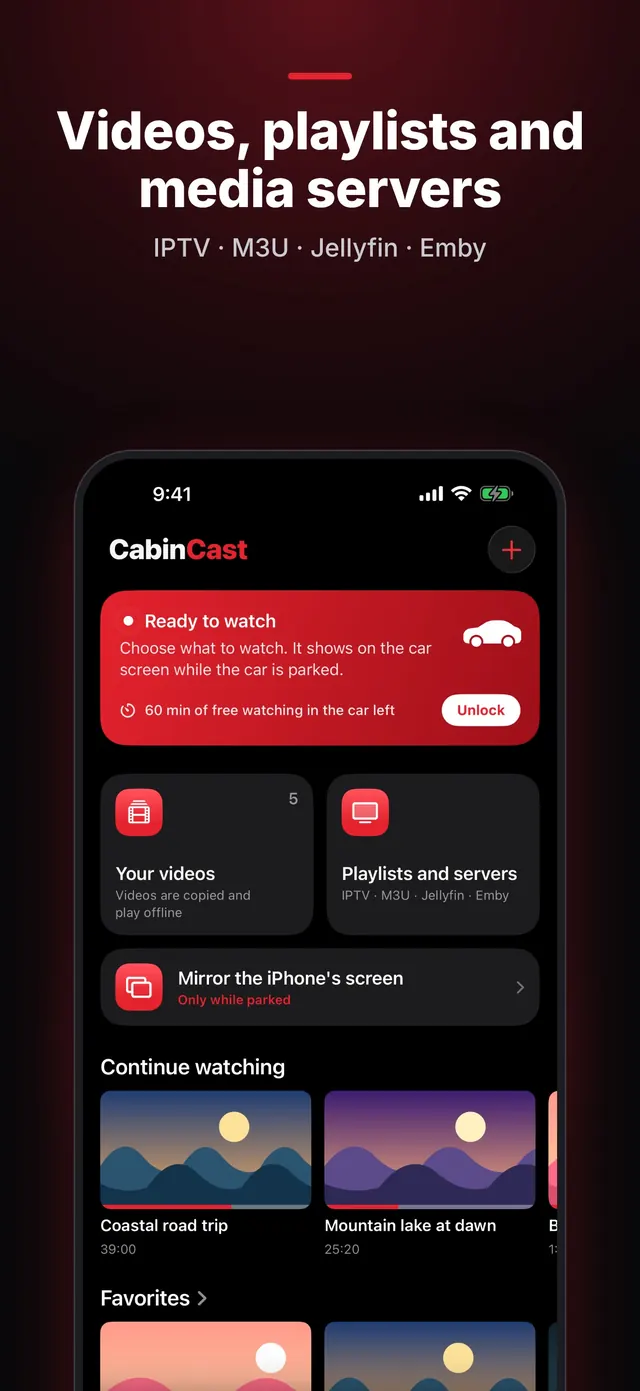
Add your server
- In CabinCast, tap + → Media servers and choose Jellyfin or Emby.
- Enter the server address, username and password, then tap Sign in and add.
CabinCast doesn't store your password. Instead, the server gives the app a key, which stays in the iPhone's Keychain.
At home and on the road
On your home Wi-Fi, iOS may ask about Local Network access. Allow it so CabinCast can reach the server. Away from home, use the server's public address, for example through your router or a reverse proxy, and you can stream over cellular data.
 CabinCast — Video, IPTV & Screen Mirroring
Download on the App Store
Watch on the car screen
Open CabinCast on the CarPlay screen, pick the server, then a movie or an episode. Your progress is saved, so Continue watching takes you back to where you stopped.
Only while parked
Driving off hides the picture, but the audio plays on. Location access is required to watch on the car screen.
Questions
Does CabinCast transcode?
It plays what your server sends. If a file won't play, try another version of it on the server, or let the server convert it.
Which media servers are supported?
Jellyfin and Emby. You can also add M3U playlists, direct video links and files from Files or Photos.
CarPlay guides
- How to watch videos on CarPlay (2026)
- CarPlay video not working? How to fix no picture on the car screen
- How to watch movies on CarPlay while parked
- IPTV on iPhone and CarPlay: play M3U playlists
- What is an M3U playlist? M3U and M3U8 explained
- CarPlay screen mirroring and AirPlay: show your iPhone on the car screen
- How to watch TV on CarPlay in your car
- CarPlay video apps and players: how video works on CarPlay in iOS 26
- CarPlay AI box vs a CarPlay video app: which one to choose