How to watch TV on CarPlay in your car
Parked and waiting? The CarPlay screen in your dashboard can show TV: live channels from an IPTV playlist, recordings you saved, or shows from your own media server.
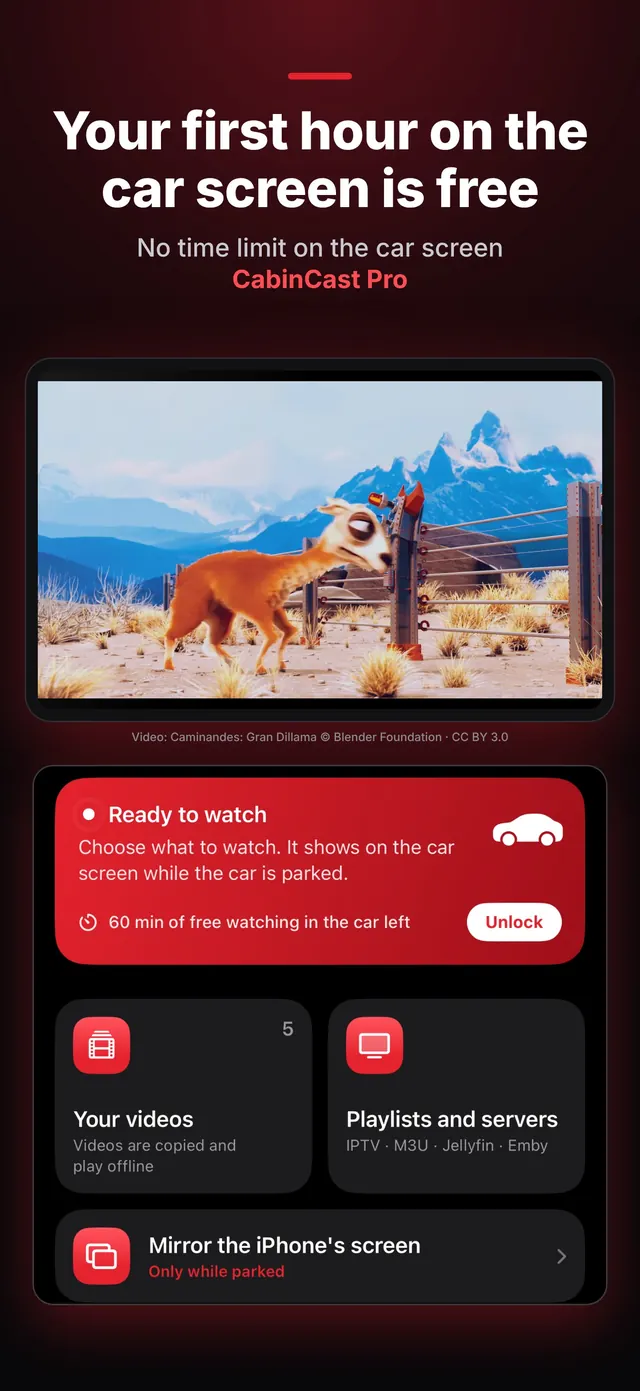
Live TV from a playlist
Add your provider's M3U playlist in CabinCast. The channels appear under Live TV in the playlist's own groups, with the ones you watched last at the top. Details are in IPTV on iPhone and CarPlay.
Shows you already have
Copy recordings and downloaded episodes from Files or Photos, and they'll play offline. You can also add a Jellyfin or Emby server and watch your library from there.
 CabinCast — Video, IPTV & Screen Mirroring
Download on the App Store
Keep listening while you drive
When you set off, the picture goes away but the sound stays, so you can keep following a news channel or a game the way you would on the radio. Tap Video once you've stopped to get the picture back. Location access is required to watch on the car screen.
Free to try
Your first hour on the car screen is free, and the iPhone side is free for good. CabinCast Pro removes the time limit, and you can pay for it weekly, yearly or once for lifetime access.
Questions
Can I watch TV on CarPlay without the internet?
Live TV needs a connection. Videos you copied from Files or Photos play offline.
Does it work with satellite or antenna TV?
No. CabinCast plays files, IPTV playlists, links and media servers.
CarPlay guides
- How to watch videos on CarPlay (2026)
- CarPlay video not working? How to fix no picture on the car screen
- How to watch movies on CarPlay while parked
- IPTV on iPhone and CarPlay: play M3U playlists
- What is an M3U playlist? M3U and M3U8 explained
- CarPlay screen mirroring and AirPlay: show your iPhone on the car screen
- Jellyfin and Emby on CarPlay
- CarPlay video apps and players: how video works on CarPlay in iOS 26
- CarPlay AI box vs a CarPlay video app: which one to choose